
How to install my Presets with Lightroom

Hi Everybody,
these days I officially opened my Preset Lightroom online store, if you haven't seen it yet, I strongly suggest you drop by!
In this post I will explain step by step how to install my presets, once downloaded, on the free Lightroom Mobile app quickly and easily.

1.
The first fundamental step is to go to the SHOP section of the site and choose a preset to download.

2.
Once the payment has been made, click on the DOWNLOAD button (do not worry if you leave the page by mistake, you will always receive an email with the purchased files).

3.
If you have an iPhone, I recommend that you use Safari as a browser.
In fact, once downloaded, the file will appear at the top right.

4.
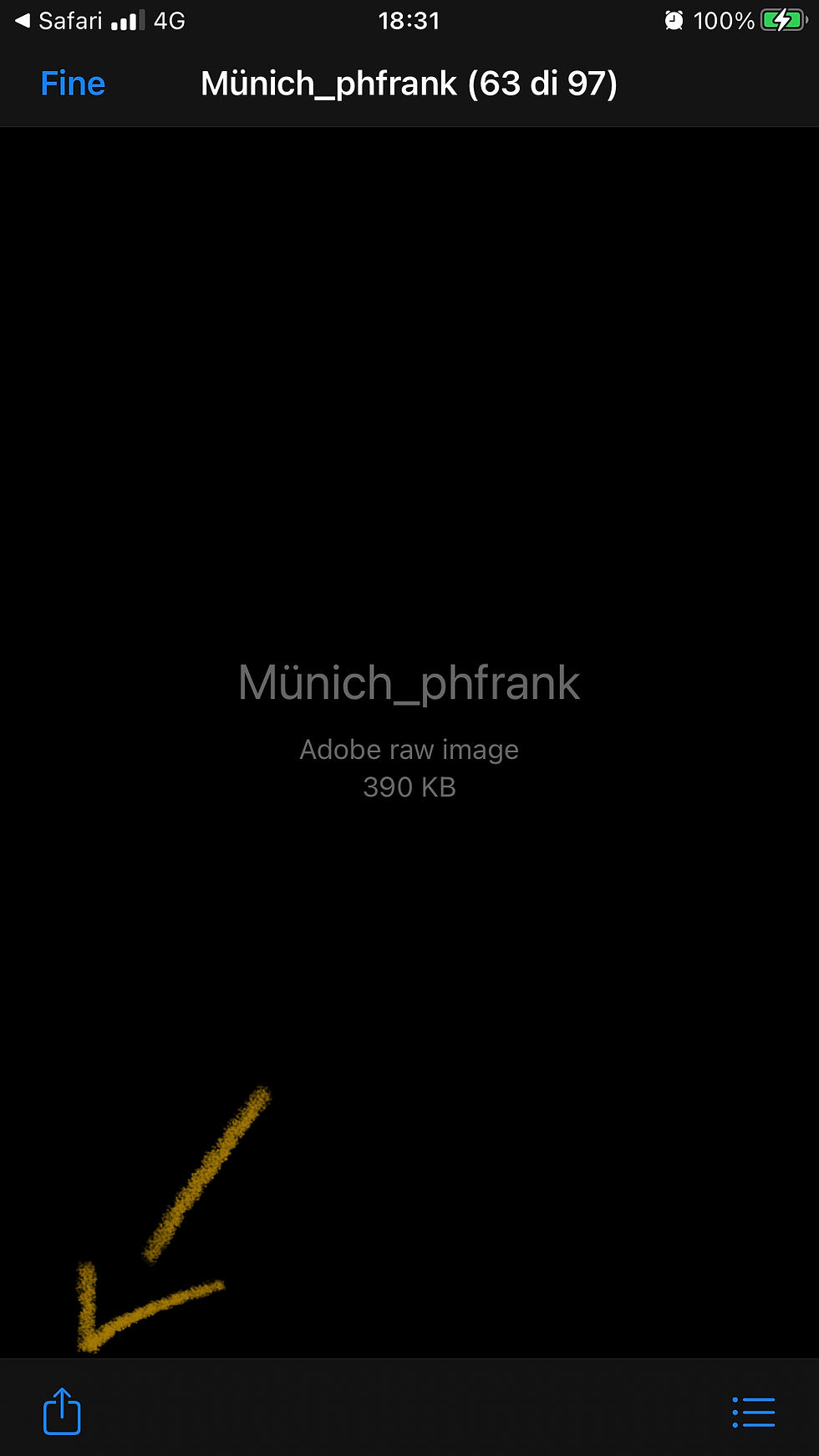
Clicking on the downloaded link will open a screen with the file name in the center.
Once this is done, you need to click on the icon at the bottom left and then save the file as an image.
5.
Last step: launch the Lightroom Mobile app and add the previously saved image to your camera roll.
At this point, you need to select the downloaded image, click on the button at the top right and create a preset.
5 simple steps and the preset is finally ready to use.
I hope this guide will help you.
I remind you that for any doubt you can comment under this post, write in the instant chat of this site or through my social networks!
XOXO


Comments